Introduction
In this article, we will discuss how to access and view the logs of your X4B protected service. Logs are available in the Logs section of your dashboard and include logs for both HTTP and Layer 4.
The following logs are currently available:
- HTTP Access Logs
- HTTP Error Logs
- HTTP SSL Logs
- Layer 4 Ban Logs
- Layer 7 Trust Events
- Attack events (including Layer 4 and Layer 7 categories)
Open and inspect logs
Open Services, find your service, and choose Action → Logs. Use Log type to select HTTP Error Logs, HTTP Access Logs, HTTP SSL Logs, Layer 4 Bans, Layer 7 Trust Events, or an attack category. Available results depend on the service's traffic and logging period.
Open the date/time selector, choose the date you need, and set From and To in GMT. Click Apply. For a whole day, use 00:00 to 24:00.
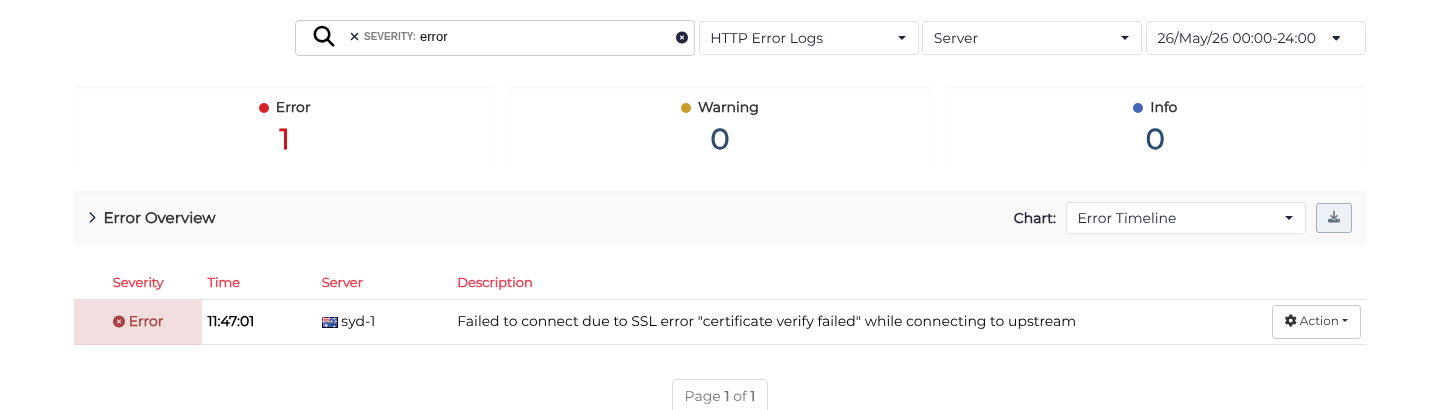
To find error entries, enter severity:error in Search text, then click Apply log filters (the search icon). The query appears as a filter; reloading preserves the selected log type and filters in the page URL.
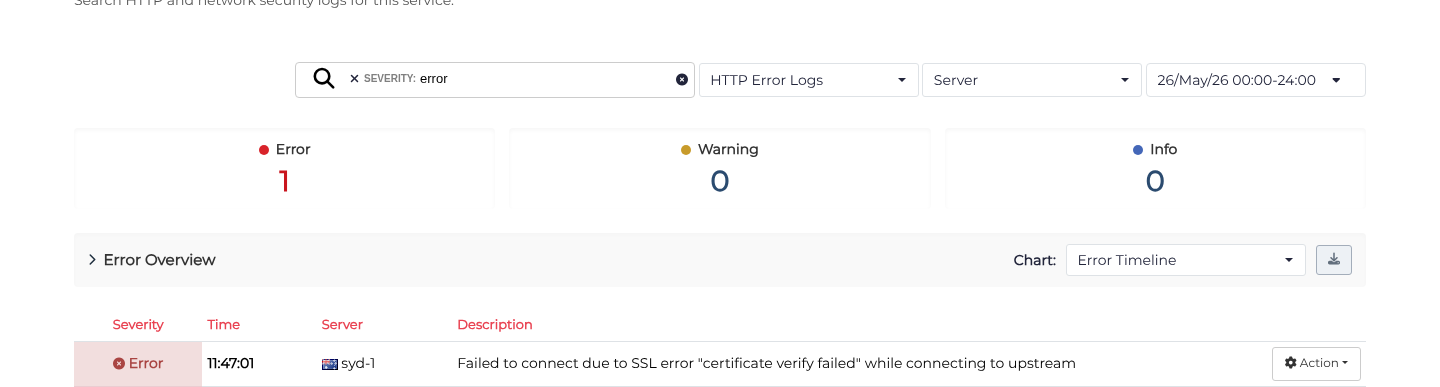
Review the matching row's time, server and description. For example, certificate verify failed indicates a certificate-verification problem while connecting to the upstream; open Action → Information on the row to inspect the request and backend details before changing configuration.
Searching and Filtering
Logs can be filtered by many different criteria. You can filter logs using the drop down menus and the search box. When the searchbox is given simple text logs will be searched by the string provided. When a structured query is given logs will be filtered by the structured query.
The drop down hints provided will help you in building a structured query. A structured query is made up of multiple tagged expressions, for example:
severity:warning client_ip:1.2.3.4
In newly entered queries, single or double quotes delimit a value and are not part of the search. For example, severity:error "TLS failure" combines a severity filter with the text search TLS failure. Field names depend on the selected log type; unknown tags such as error:1000010a and URLs are treated as text.
To search for quote characters, wrap the text in quotes and escape matching quotes with a backslash. Inside a quoted value, escape a literal backslash as \\:
"https://example.com/api?q=a&b=2#café \"quoted\" \\ 東京"
This searches for https://example.com/api?q=a&b=2#café "quoted" \ 東京. The same escaping applies to quoted structured values, for example request_uri:"/say/\"hello\"".
When editing the value of an existing filter, enter the value directly. Quotes and backslashes in that editor are literal characters; query syntax is only parsed in the Search text field. Reloading or applying filters again preserves the value.