This tutorial will explain how to set up and configure a DDoS protected FiveM server on a Windows Server. This guide assumes that you are already running (and have access to) the FiveM server you wish to protect.
This is guide is primarily user sourced. As always we thank our users for their contributions to the knowledgebase.
Step 1: Backend Setup
Setup FiveM on your server, this server will be from here on referred to as the "backend server". This guide covers a Windows Server setup, however both Windows and Linux are supported (Windows with GRE requires some extra steps).
Please ensure that the game server is running and is able to be connected to via the backend server.
Step 2: Purchase DDoS Protection Service
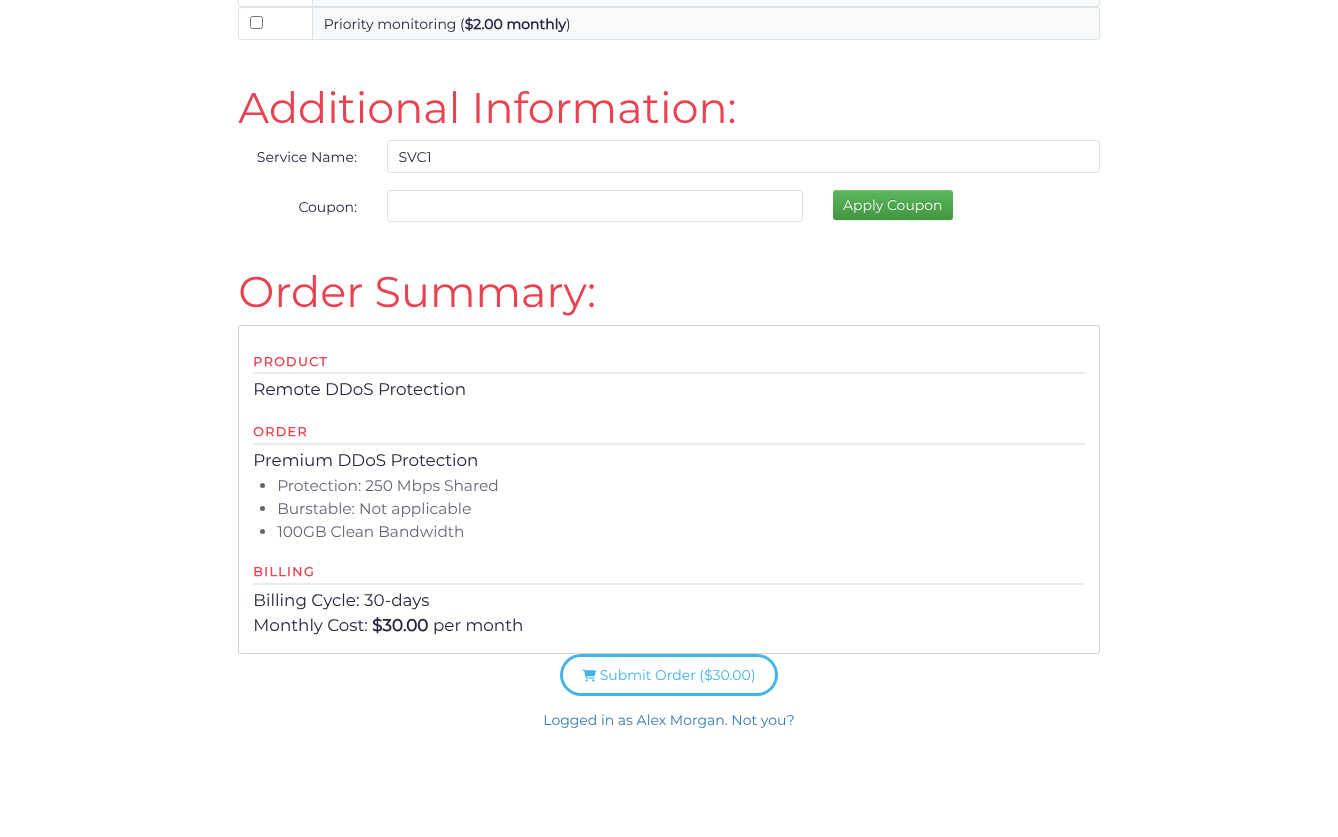
Choose a billing cycle, a service tier/network and the clean-bandwidth allowance on the DDoS protection page, then click Continue to Checkout. On Complete Order, review the filtering region when offered, enter a Service Name, and review the Order Summary before submitting your order. Choose a region close to your backend and users; clean bandwidth measures delivered traffic, not attack traffic. If you already have a suitable active service, continue with that service.
Step 3: Encapsulation Setup (Optional)
This step is only required if you are intending to use a GRE or IP-in-IP. If you are intending to use a Reverse Proxy (RP) style connection (the easiest) then you can skip this step.
A Reverse Proxy only proxies connections to your backend and can be useful for when you do not have command line skills or knowledge to set up a network interface (or when using a panel that does not give access to console).
Note: When running your backend in this mode (Reverse Proxy), make sure that your players do not connect directly to your filtered IP address and instead connect via the server browser listing. If connected directly, their IP address (identifier) will appear to be one of your assigned backend IP addresses (and will trigger false bans if you rely on player IPs). Using encapsulation below solves this potential problem, but may be harder to set-up for you.
An encapsulated backend requires support on the Backend Server, currently Windows and Linux Operating Systems are fully supported, with partial support for FreeBSD. Most Enterprise or even SOHO Routers also support GRE or IP-in-IP tunneling, if supported you may be able to configure the router to terminate the encapsulated network.
Open Services, find your service, and choose Action > Tunnels. Click Add Tunnel, select GRE in Tunnel type, and enter the backend server's public IP in Backend address. Retain the displayed GRE key unless your backend requires a tunnel without one, then click Save. The integrated form below is an alternative way to configure the same tunnel.
The completed example uses 203.0.113.10 as a documentation-only backend address, GRE key 1785302134, and MTU 1472. Replace the backend address with your server’s public IP and use the same key and MTU when configuring that server.
After saving a port that uses this tunnel in Step 4, return to Tunnels and choose the tunnel's Action > Setup Tunnel. Select Linux / BSD and Download Tunnel Script, or Microsoft Windows and Download Application, as appropriate for your backend. The tunnel must be referenced by an Encapsulated port before it is usable. Install the downloaded script or application on your backend using the linked operating-system instructions.
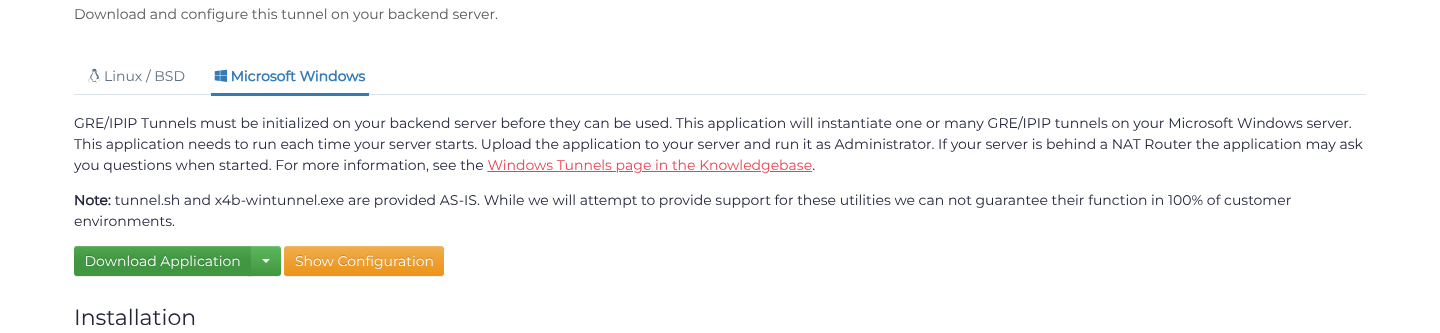
For more information on GRE/IP-in-IP Tunnels (including installation instructions for Windows) click here.
Step 4: Add Ports
Add the ports required to run your service. In this case, the default port for FiveM servers is 30120 but may vary depending on your setup. If unsure, you can determine what port the service is bound to by using netstat
When creating your port, make sure you select the FiveM profile from the Protocol dropdown. This profile ensures that only valid FiveM traffic reaches the backend server and works for both UDP and TCP. You can optionally configure additional protection for TCP by creating a HTTPS port. You can read more information about that in the last steps below.
This profile is only available on Anycast services. If you are using a Budget service the closest approximation is the TCP&UDP port which is the same but without any FiveM specific optimization.
Open Services, find your service, and choose Action > Ports. Under Single Port, click Add port manually when Add your first port is shown; otherwise click Add Port. Enter the public port in Port start, choose the documented Protocol, and set Backend method to Reverse Proxy with your Backend address and Backend port, or to the available Encapsulated method with the tunnel created in Step 3. Click Save after each new entry and check the saved row. For a range, choose Port Range > Add Port Range, enter Port start and Port end, then select the protocol and backend before saving.
The completed example uses 203.0.113.10 as a documentation-only backend address. Replace it with your backend address, or select the GRE tunnel you created when using encapsulation.
Note: You can use your service to be open to connections on port 30120 and yet have your backend server run on a non-standard port. Just make sure that your backend server is configured appropriately.
Step 5: Backend Configuration
Reverse Proxies & Encapsulation
In order to direct your players to connect to the filtered and protected IP address provided by X4B, you must first set some important values in your server.cfg file. Replace all instances of <replace_with_filtered_IP> with the IP address assigned to your X4B service:
set sv_forceIndirectListing true
set sv_listingIpOverride "<replace_with_filtered_ip>:30120"
set sv_endpoints "<replace_with_filtered_ip>:30120"

# This is only required for Reverse Proxy setups
set net_tcpconnlimit 10000
Now you can start the server and your players will be connecting through your filtered IP.
Encapsulation Only
The FiveM server (by default) listens for UDP and TCP traffic on all interfaces of the machine that you're running it on. Because of this, we only want it to listen on your local tunnel IP.
Replace all instances of <replace_with_tunnel_IP> with the local tunnel IP address, (which can be found by checking your network interfaces):
endpoint_add_tcp "<replace_with_tunnel_IP>:30120"
endpoint_add_udp "<replace_with_tunnel_IP>:30120"
These two configuration values will need to replace the default ones (with the IP of 0.0.0.0) that are usually located at the top of your server.cfg file. If you skip this step, you will run into issues!
HTTPS Configuration (Recommended)
In order to get the most out of your protection, you should consider setting up an additional HTTPS port alongside your already-existing FiveM port. If you wish to do this you must completely follow the steps below.
The following step will cover that fairly advanced configuration. These steps are recommended for those under active attack, or those who want to ensure that their server is as protected as possible. The FiveM service will actively break when attacked with HTTP and TCP floods, so this is a good way to ensure that your server remains online and accessible.
Step 6: HTTP(S) Port Configuration
Note: If using a HTTPS port in place of the TCP port in the TCP&UDP "FiveM" port complete configuration including all sections below are necessary. The individual sections themselves are not optional the entirety of Step 6 including rules and caching must be performed.
Start by adding a new port, just like what you did in Step 4. Only this time, select HTTPS as the protocol. Set the internal and external port(s) as the exact same as what you configured on your FiveM-protocol port.
The HTTPS entry uses the same backend port. The example leaves backend SSL disabled; enable it only if that backend listener expects TLS.
After saving the new HTTPS port, open its Action > SSL page. In Certificate Upload > Upload a certificate, choose the Certificate file and matching Private key file, then click Upload Certificate. The status must show a supplied certificate and private key before proceeding.
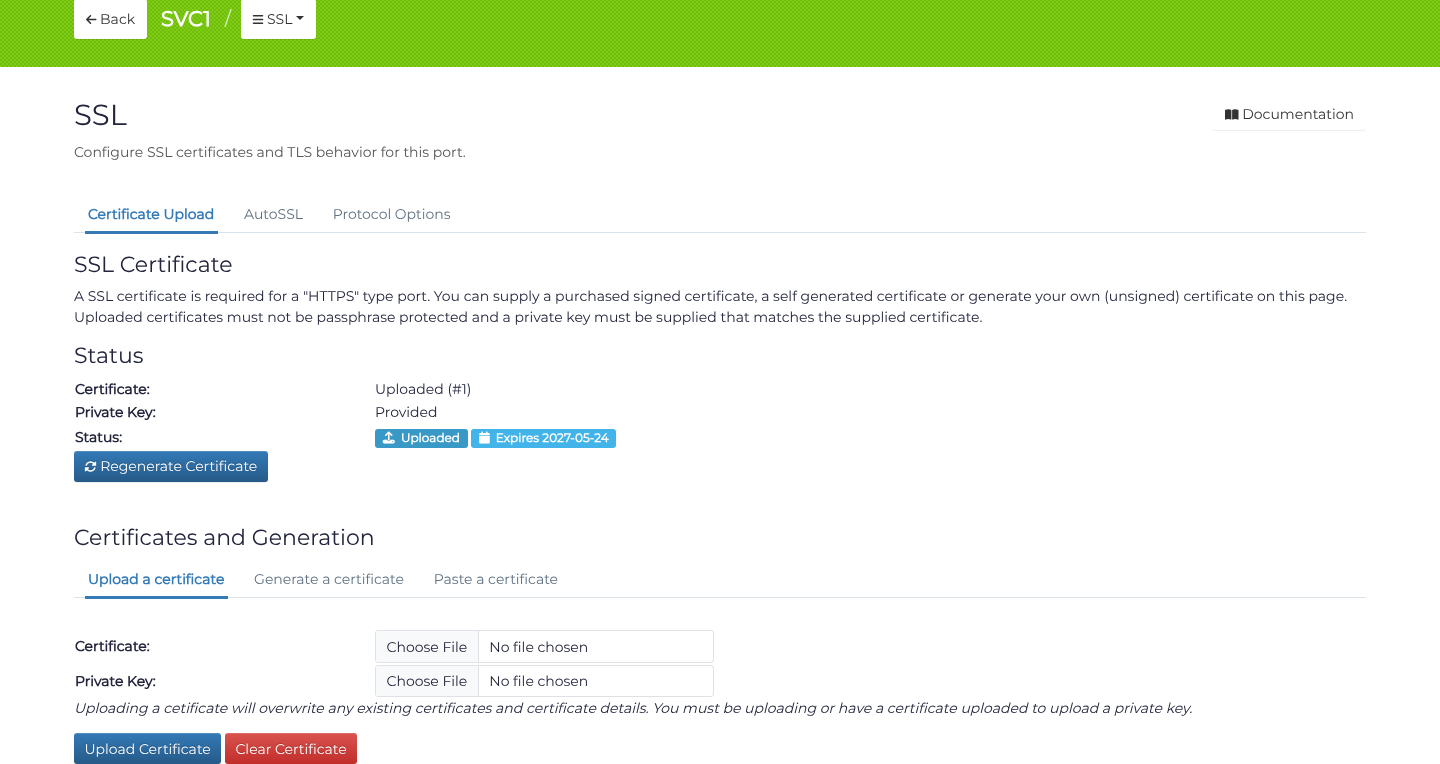
If you want you can retrieve the certificate (and the private key) by heading to where FXServer.exe is located and finding the server-tls.crt and server-tls.key files but you should be fine using a self-signed certificate is also fine (FiveM at this time does not validate TLS certificates). After locating these two files, either upload them or copy-paste them across to the text fields under the SSL page. The certificate itself is the file ending with .crt, while the private key is the one ending with .key.
When SSL is setup, there's a couple things you'll need to tweak before trying to connect:
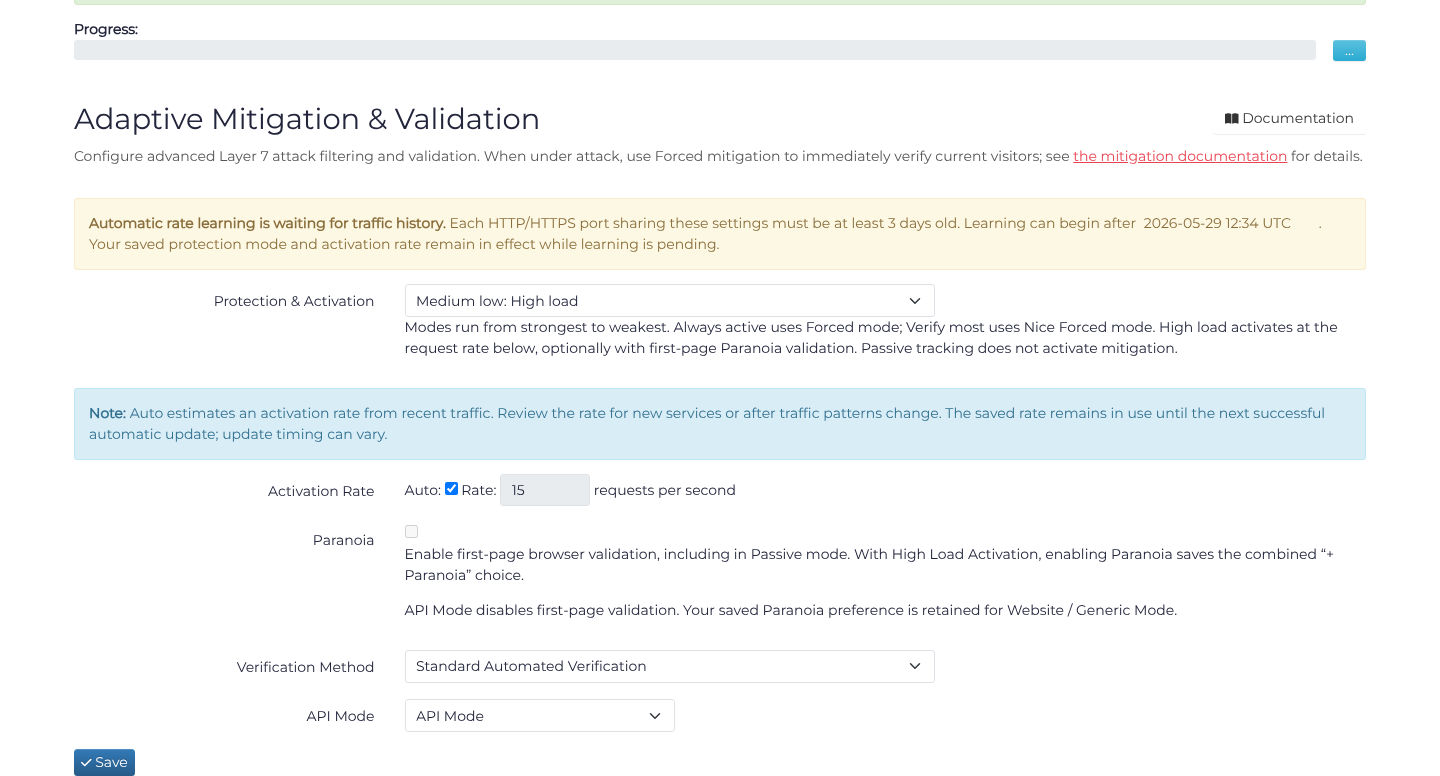
- Open the HTTPS port's Action > Filtering page. In Layer 7: Mitigation & Validation, click Configure Options to open Mitigation. Set API Mode to API Mode.
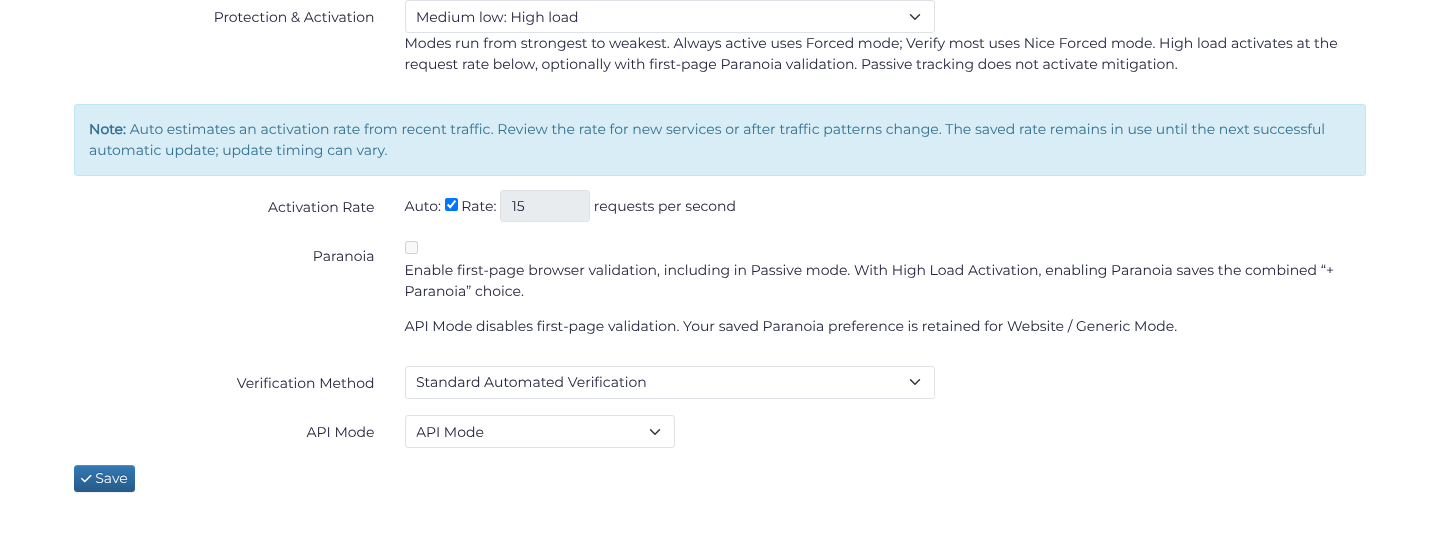
- Set Protection & Activation to Medium low: High load, check Automatic activation rate, and click Save. Learning waits for sufficient traffic history; a saved automatic setting does not mean learning has completed.
- Go to the
Error Pagespage for your HTTPS port and enable497: A HTTP request sent to a HTTPS port- set the Redirection options to the following:https://$host:30120$uriand308 - Permanent Redirect (POST). Click Submit in the 497 section after configuring the redirect. Everything else can be left as-is.
Now that you're done with the base requirements to get everything to play nicely with each other, you should test to see if you can connect.
Caching & Rate Limiting
After successful testing, you can now move-on to optimizing your HTTP zones with caching and rate limiting. Open the HTTPS port's Action > Zones page, click Add Zone, enter /*.json as the Location expression, and click Save. In the saved row's Action menu, choose Advanced Config and set the following values:
- Cache Policy:
Force - Cache Time:
2 minutes(review this application-specific value when updating FiveM)
Click Update to save the cache settings and return to Zones. Reopen the saved row's Action > Advanced Config to check the policy and cache time.
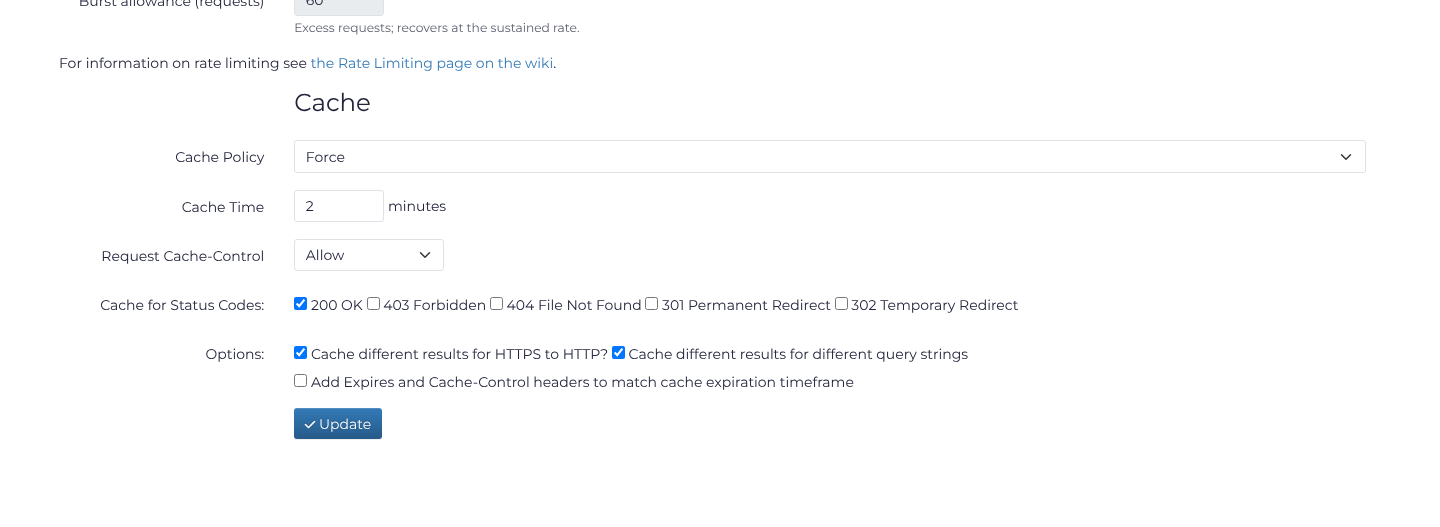
This will cache all *.json endpoints (like players.json) on the edge of the network, accelerating request performance and protecting your backend against HTTP floods.
For rate limiting, return to the HTTPS port's Filtering page and click Configure Limits in the rate-limiting section. On Rate Limits, use the following values:
- Sustained Rate Limit:
Strict (3r/s) - Burst allowance (requests):
8requests - Max Concurrent Connections per Source IP:
150
Click Save and check that the values remain selected.
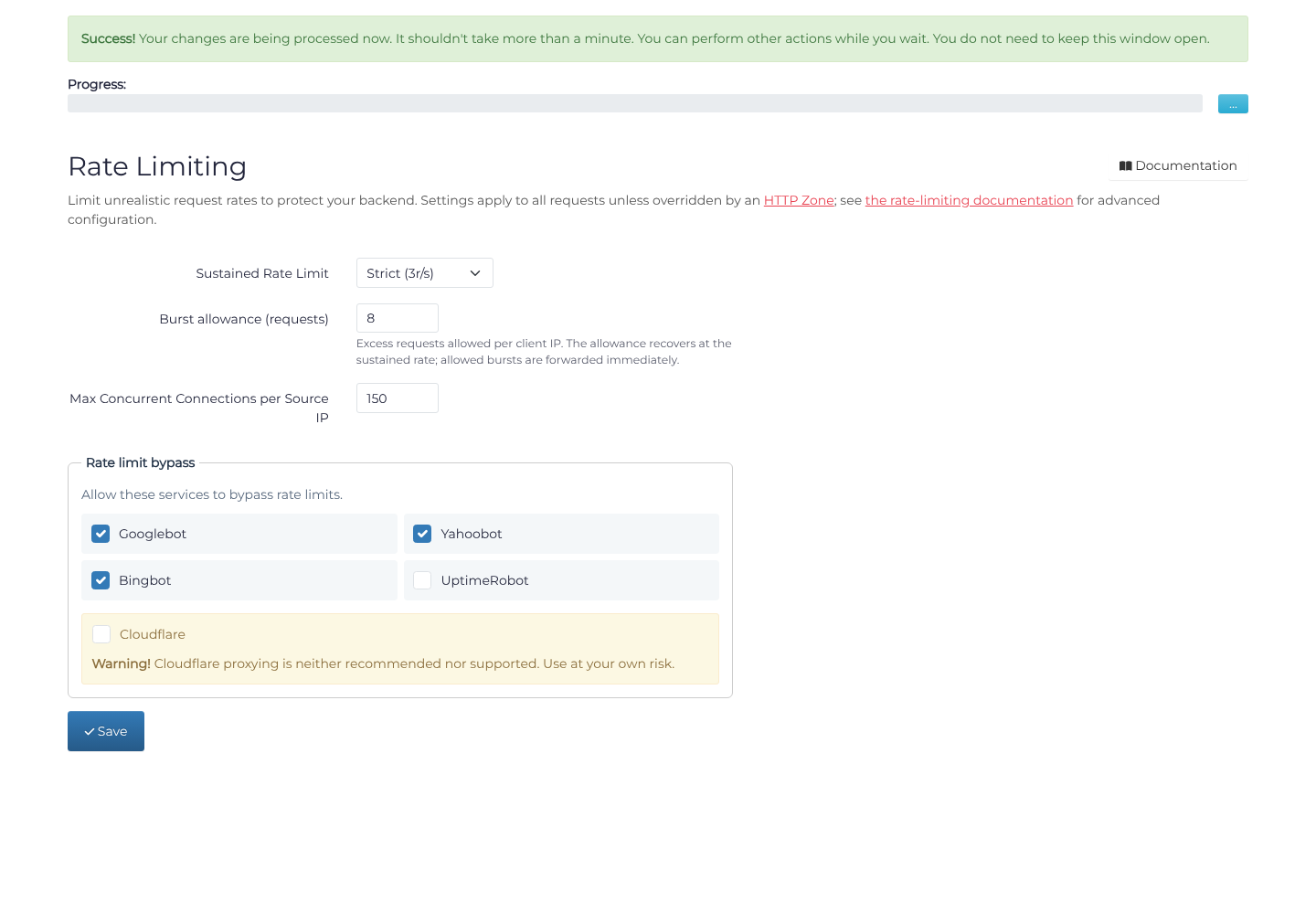
This will rate limit all requests to all HTTP endpoints to the above values. You can configure zone-specific rate limiting under the Zones page, but this isn't required here.
Unrelated to mitigation you may also wish to configure caching for your assets and resources (e.g /files/) via HTTP Zones. Adding a cache zone for this is of course optional.
Layer 7 Mitigation Rules
You can also setup additional mitigation rules that are always active, because X4B is cool like that.
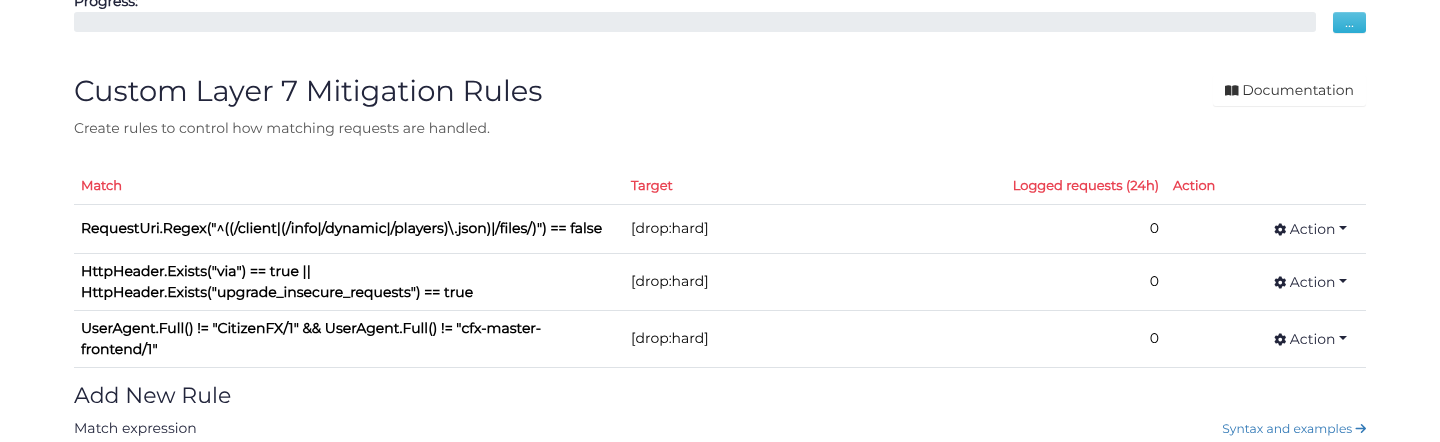
To get started, open the HTTPS port's Filtering page and click Add Rules in Layer 7: Custom Rules. Enter each expression below in Match expression, choose Drop All: Hard Disconnect in Target type, and click Save rule for each rule.
You can define these however you want, but the rules below protect your resource endpoints and adds some extra checks for valid FiveM client (and proxy) traffic:
# This rule ensures that the only accessible endpoints on your filtered IP (and HTTPS port) are:
# - /client
# - /info.json
# - /dynamic.json
# - /players.json
# - /files/*
RequestUri.Regex("^((/client|(/info|/dynamic|/players)\.json)|/files/)") == false

# This rule blocks common browsers from accessing any endpoints:
HttpHeader.Exists("via") == true || HttpHeader.Exists("upgrade_insecure_requests") == true

# And this one adds a user-agent check, which will catch most traffic during HTTP floods (unless specialized):
UserAgent.Full() != "CitizenFX/1" && UserAgent.Full() != "cfx-master-frontend/1"
Be aware that if you access any resource endpoints (i.e for prometheus metrics), you will have to do it through your backend IP address if you choose to use these rules. If you have additional endpoints for users (e.g chat) you will have to extend these rules as appropriate as these rules are an example of an explicit whitelist (reject anything unexpected).
You should also generally avoid making any requests to your Filtered IP for purposes such as Discord bots. Use your backend IP for that.
Feel free to add your own rules. As with any changes make sure to test them and do it on a port made for testing to not interrupt any legitimate traffic on a production server.
Step 7: In-Game Audio
If using the HTTPS port in game audio which uses a different protocol (Mumble) than both the UDP FiveM port and HTTP/HTTPS will not work in its default configuration. To fix this you will need to add a sperate Mumble port to your service. This port should be configured to forward traffic to the same backend server and IP as your FiveM game server. We recommend using your game sever port +1 (e.g. if your game server is on port 30120, use 30121 for Mumble). This port should be configured to be of type TCP&UDP. Some connection rate limiting may be required to prevent abuse, but this is not required for the port to function.
If you are not using the in-game audio or have already configured an external Mumble server, you can skip this step.
If using mumble-voip:
Edit your config.lua or fxmanifest.lua (depending on the version), and set:
voice_config = {
    mumbleServer = "your.external.ip:64738", -- IP and port of the Murmur server
    -- Optional: you may need to provide other details like password or ping settings
}
Also make sure the voice_useNativeAudio is set to true.
If using pma-voice:
In config.lua or your custom config file:
voice_config = {
    mumbleServerAddress = "your.external.ip",
    mumbleServerPort = 64738, -- or your custom port
}
If using the default FiveM voice:
To change the port your FiveM server uses for Mumble, you will need to set the MUMBLE_SET_SERVER_ADDRESS. This is done by adding a client resouce (e.g mumble.lua) with the following code:
AddEventHandler("onClientResourceStart", function(resName) -- Initialises the script, sets up voice range, voice targets and request sync with server
	if GetCurrentResourceName() ~= resName then
		return
	end

	DebugMsg("Initialising")

	MumbleSetServerAddress("youip", 30121) -- Replace "yourip" with your Filtered IP and 30121 with the Mumble port you created in the previous step.
end)
You will need to ensure that this resource is loaded in your fxmanifest.lua file. This can be done by adding the following line to the fxmanifest.lua file:
client_script 'mumble.lua' -- Ensure this is the correct path to your mumble.lua file
Finish & Test
Once all steps are completed and the progress bar for deployment of the configuration reaches 100% you should be able to connect to your service on your Filtered IP.
This Filtered IP is the address that you should use in any DNS names, or supply to any connecting users. All traffic which arrives at configured ports on a Filtered IP will be filtered for attack, and then forwarded to your configured backend server.
Note: Keep host and provider firewalls enabled. Allow the required service traffic from the current Backend Communication IP Addresses shown in the Dashboard. For tunnels, also allow the selected tunnel protocol between its endpoints.
Have Fun!