Enhanced HTTP mitigation uses traffic behaviour and browser verification to help protect websites and HTTP services from unwanted automated traffic. It supplements filtering for known attacks and invalid requests, alongside rate limits, access controls, and custom rules. Legitimate clients can also be affected, so check real user journeys after changes.
Open Services, choose the service's Action → Ports, then the HTTP/HTTPS port's Action → Filtering. Under Layer 7: Mitigation & Validation, choose Configure Options. Record the current settings before making changes so you can restore a tested configuration.
During an incident
Assess → Adjust → Verify → Recover
- Check Service Logs, attack reports, and backend health. Establish whether the problem is an attack, an application failure, or a legitimate traffic surge.
- For an affected browser-facing website, consider High: Always active as an immediate response. Expect more visitor verification. Forced browser verification is not a universal response for APIs or other machine clients.
- Save, reload to confirm your choice, and check legitimate access, errors, and backend load. Contact support if availability remains poor; check each change's effect before increasing restrictions again.
- Once the incident subsides, restore your previously tested protection mode and activation rate, then save and reload to confirm them. Monitor recovery.
Choose a protection level
The Protection & Activation choices control enhanced activation; they do not replace the other filtering settings.
| Dashboard choice | When to use it and what to expect |
|---|---|
| High: Always active | Broad verification during a significant incident, with more visitor friction. It does not mean every request receives a challenge. |
| Medium high: Verify most | Always-active verification intended to be less disruptive than Forced. Check whether it provides sufficient protection for the incident. |
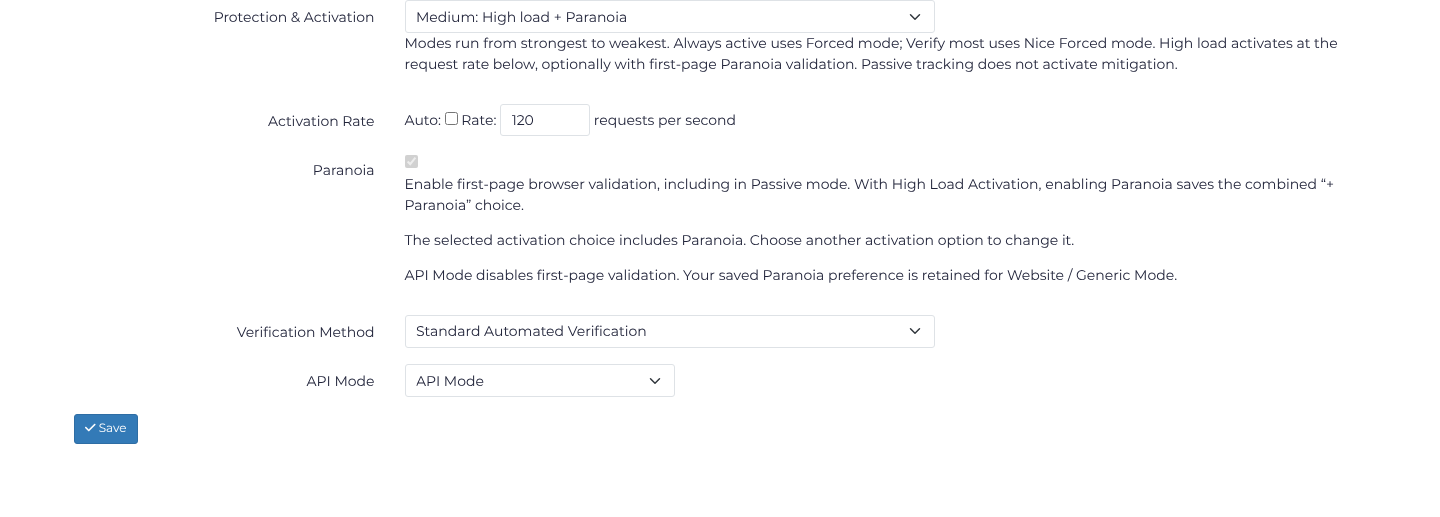
| Medium: High load + Paranoia | Load-triggered protection with first-page browser validation. This choice requires Paranoia; API Mode suppresses the first-page check. Test application compatibility. |
| Medium low: High load | Load-triggered protection for routine operation where appropriate. Configure Activation Rate manually or select Auto. |
| Low: Passive tracking | Reduced enhanced activation, not an “all protection off” switch. Other filtering remains applicable, and Paranoia can still enable first-page validation. Do not use it as a blanket fix for blocked clients. |
Paranoia adds a first-page browser validation check and can accompany any activation mode, including Passive. With load activation, enabling it saves the combined + Paranoia choice. To change the checkbox from that combined choice, select another activation option. API Mode disables the check but retains the saved preference for returning to Website / Generic Mode.
Configure for your application
Activation rate
For load-triggered protection, Activation Rate applies to traffic for the configured port and is expressed in requests per second. Base a manual rate on normal legitimate peaks and tested backend capacity, leaving enough headroom for protection to activate before the backend becomes overloaded. Treat it as an activation setting, not a precise instantaneous boundary or a per-client request limit. Configure Rate Limiting separately.
Auto estimates the activation rate from recent traffic. It applies to load-triggered activation and preserves your selected protection mode. The saved rate remains in use until a successful automatic update; timing varies. Review it for new services and after traffic patterns change. Save and reload to confirm the selected mode and rate.
Save and check a manual configuration
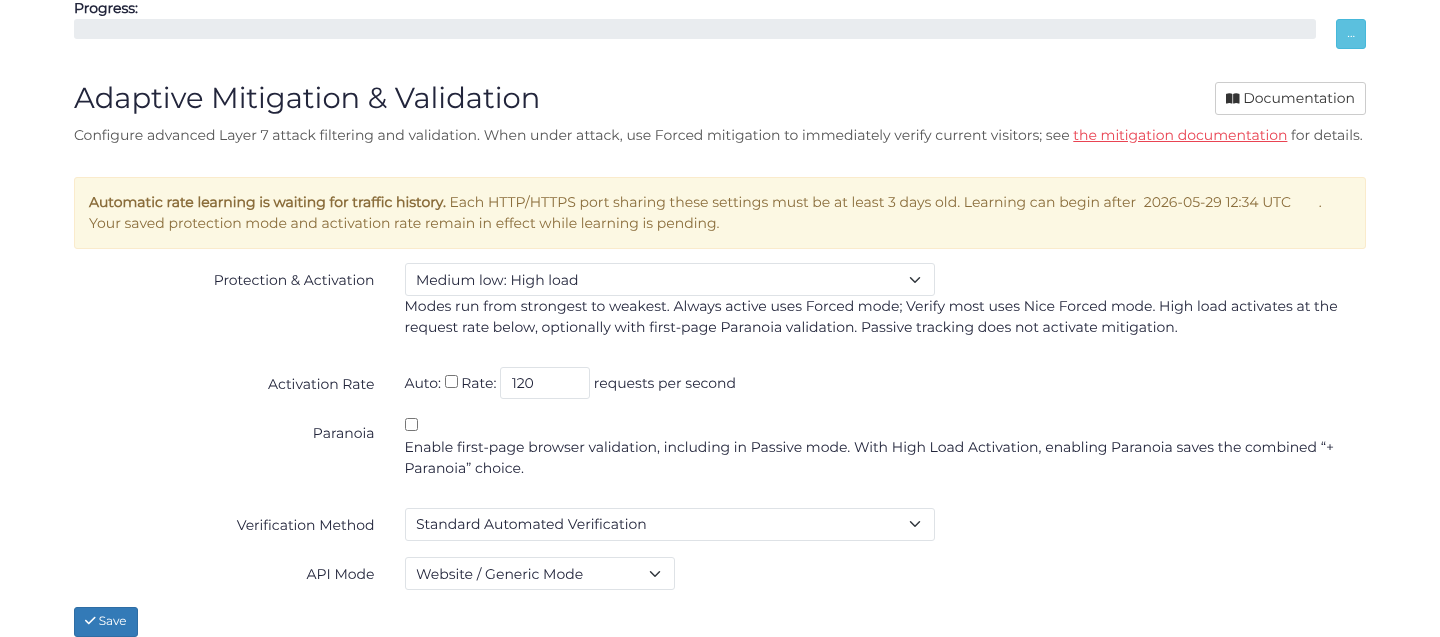
For a browser website, choose Medium low: High load, clear Auto, enter a tested Activation Rate, and use Website / Generic Mode with Standard Automated Verification. Choose Save, reload, and confirm the mode, rate and Paranoia preference. The 120 requests per second below is an example, not a recommended threshold for every server.
Browser and API compatibility
Use Website / Generic Mode for browser workloads. Standard Automated Verification performs automated browser checks. JavaScript or cookie restrictions can prevent verification from completing; test the browsers your customers use. Successful verification allows visitors to continue. An HTML challenge returned to an AJAX/fetch call does not run automatically as a page would; browser applications may need the visitor to complete verification through normal page navigation.
Use API Mode for machine-to-machine workloads, with suitable rate limits and application authentication. It suppresses Paranoia's first-page check while retaining other mitigation. If you want to retain a particular Paranoia preference, save it in Website / Generic Mode before switching to API Mode. Requests can still be rejected.
For materially different workloads, consider separate port or hostname configurations. Test login, checkout, forms, resource loading, AJAX, API calls, webhooks, and monitoring as applicable. Do not assume interrupted operations resume automatically or blindly retry payments and other actions that could be duplicated. Cross-origin API calls also need testing against your application’s CORS and method settings.
API rejection responses
With API Mode enabled, send the HTTP request header Accept: application/json to request JSON instead of an HTML verification page. This selects a response format; it does not exempt the request from mitigation. For example:
GET /api/status HTTP/1.1
Host: api.example.com
Accept: application/json
If enhanced mitigation rejects this request, the JSON rejection response is:
HTTP/1.1 403 Forbidden
Content-Type: application/json

{
  "error": "Mitigation Rejection",
  "_schema_revision": 1,
  "_source": "x4b-sense"
}
If you send multiple acceptable formats, JSON must be preferred. A missing header, a wildcard alone, or a preference for HTML can result in a browser challenge. Content-Type: application/json on the request describes its body and does not replace Accept. Other filtering layers and your application may return different errors; clients should check the status and response content type before parsing JSON.
False positives and recovery
Check relevant logs and browser JavaScript/cookie settings. For repeated verification failures, contact support with the affected hostname/path, time and timezone, client IP, request UUID where available, error or HTTP status, and a screenshot. Remove credentials, tokens, and other sensitive information from anything you share.
Identify the cause before adding narrowly scoped exceptions. Review Layer 7 Rules and Layer 7 Bans and Whitelists where relevant. After an incident, restore tested normal settings, remove temporary exceptions, and monitor legitimate access and backend load.